Friday, May 9, 2014

iPhone Hints and Tricks

iPhone Hints and Tricks

Tags: iPhone Smart Phone

Whether you are a new user or a seasoned user of Apple’s iPhone, you're most likely not making use of your smartphone to the absolute maximum. With these simple tips and tricks, you won’t learn everything about your iPhone, but you will definitely become a more proficient user.
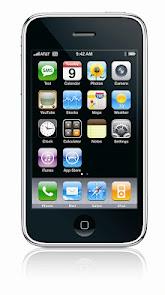

iPhone Tips & Tricks

You can take a screenshot.
From saving content you view on your mobile browser to taking quick snaps of funny texts, taking a screenshot can be incredibly useful in a lot of ways. Taking a quick snap of whatever is on your iPhone’s display is super quick and easy; simply press the home key at the bottom of your phone at the same time as the button at the top of the device. Your screenshot will be saved to your camera roll.

Have Fun With Siri
If you add the address for people in your contact list and then ask Siri to take you to them, she will give you directions to their house. Telling Siri about your relations will cause her to ask to remember them. If you agree, she will remember. Then, whenever you ask her to name your relation, she will. e.g. Telling Siri that Rebecca is my sister will make her tell that Rebecca is your sister whenever you ask the question, "Who is my sister?"

Instant Scrolling
If you have scrolled down a really long web page, then just tap the bar on the top of your screen to immediately be taken to the top of it.

Automatic Backup
To automatically backup your iPhone on iCloud, go to Settings > iCloud > Storage & Backup and turn on iCloud Backup. This will automatically backup your phone's critical data without the need to synchronize it again and again.

Caps Lock
To type in capital letters, just enable Caps Lock on your phone by double tapping the Shift arrow.

Extend Battery Life
If you feel that your iPhone's battery performance is below par, you can increase it by disabling 3G, Bluetooth and push notifications. Just go to Settings> General> Network to do this.

Use the Home Button
Pressing the Home button once will take you to your Main Screen. Pressing it twice will take you to Spotlight Search which you can use to search everything on your phone.

Control what appears in Spotlight search
To control what appears in Spotlight search, go to Settings> General> Spotlight Search and select according to your needs.

Block Inappropriate Content
To do so, go to Settings> General> Restrictions and tap Enable Restrictions. This will allow you to add a pass code and select which apps you want to make accessible.

Download Apps and Music on all your iProducts
If you have many Apple devices and don't want to download the same apps or music on them again and again, you can enable automatic downloads for apps, music and iBooks by going to Settings> Store.

Send Read Receipts in iMessage
You can let others know when you have read their text messages by enabling "Send Receipts" from Settings> Messages.

Close Programs Running in the Background
Just double tap the Home Button, then hold your finger down on the app you would like to close. Then, once it starts shaking, tap the red minus icon to close. This will be of huge help if you find that your phone is running slowly.

You can be a master of autocorrect.
If you are typing a note or an e-mail, you may have had some issues with the iPhone’s autocorrect or autocomplete features. Sometimes the results from this feature are helpful and right on, but other times they are anything but helpful. If you pay attention when you type, you don’t have to be at the mercy of your iPhone. A little textbox will pop up and recommend a spelling or a completed word; to accept it press the space key. If you don’t want to accept the word, tap the tiny “x” that appears next to it. This can help you avoid some faux pas when texting.

Create your own dictionary.
Speaking of autocorrect and autocomplete, you can create your own dictionary. When you enter a custom dictionary, your phone will autocorrect and autocomplete the things you type by inserting words you actually use. To do this, go to “Settings” and then “General.” In this menu, scroll down to the shortcuts area and tap “Add New Shortcut.” Not only will this let you enter in custom dictionary words, but you can also enter in shortcuts so that your abbreviations will end up inputting complete words in texts and emails.

Have custom ring tones for less money.
Your iPhone comes with many ringtones and message tones, but these are the same sounds that millions of other iPhone users are utilizing. If you want something unique, you may be tempted to shell out big bucks for custom ring tones. If you like to assign special ringtones to certain people or groups, this may cost you a lot. So, in order to get ringtones without breaking the bank (and taking away your app budget), you should look at applications that allow you to make ringtones out of songs you already have on your phone. Some of these cost money and should only be bought if you want to create a lot of ringtones. If you are only looking to turn out a couple of tones, you can even get a free version of these popular apps.

Block your number from other people’s caller ID.
Blocking your number can be helpful for any number of reasons. Maybe you don’t want an ex that you need to call to have your new number, or possibly you are using your personal number for business, but you don’t want professional contacts to have your personal digits. You can block your number easily from the “Settings” menu. There, you should go to the “phone” area and select the “Show My Caller ID” option; there you need to slide over to “no.” To switch it back on, follow the same steps and slide over to “yes.”

Multitask like nobodies’ business.
One of the reasons many preferred Android to the iPhone was because it offered better multitasking. As the iOS developed, multitasking has improved. When you need to quickly switch from one app to another, you simply have to press the home button to leave an app. Then double click the home key again to reveal your most recently used apps at the bottom of the screen. A quick swipe of the finger will allow you to flick through all recently used applications, allowing you to quickly hop from one application to another; thus making you more productive. 


iPhone Hints and Tricks

Tags: iPhone Smart Phone

How to Increase Battery Life on Android Mobile Phones

How to Increase Battery Life on Android Mobile Phones
Tags: Android Apps, Increase Battery lifespan

Anyone who has a smartphone knows that battery life is an issue. At the moment, the smartphone industry tends to favor performance over battery life when developing specifications for their new devices. To be perfectly honest, I am all for this. I would argue that it's better to have a zippy phone that acts quickly when I need it to rather than a slow, less sleek device that can withstand a few days of use without charging.
This is probably because I've mastered getting what I need from my phone while using the smallest amount of battery resources possible. Getting the best battery life from your phone can be somewhat complicated because everyone has a different opinion on what you should use and which (if any) features you should sacrifice to conserve battery. Fortunately, I have a simple method that works for every Android phone I've ever encountered.


Increase Android Battery Life

Display Screen

As a universal fact across all phones, the biggest drain on your battery is your display screen. Personally, I've found the auto-brightness control to work extremely well. To adjust to auto-brightness, go to 
Settings Display settings Brightness, and then just check Automatic brightness. It dims the brightness when you're in darker rooms (as it doesn't need to compete against other light sources and glare), but will really up the brightness if you're outside so that your phone is actually usable. However, if I'm really trying to conserve battery, I will turn off auto-brightness and set the brightness to very low (around 25%).

Also, be sure that you don't have an extremely long timeout (inactivity time before your screen automatically shuts off) as this will drain your battery. I personally just prefer shutting the screen off manually by pressing the power button rather than waiting for a timeout; this way my phone won't timeout on me when I am just reading something on it.

Live Wallpapers
Live wallpapers have a considerable impact on your battery life. Not using them is always a good idea if you want the best time from your battery.

Close Unnecessary Applications
If your phone has some applications running that you are not currently using, you should close them from the Task manager to avoid putting unwanted pressure on your phone which in turn will cause your battery to drain quickly.

Reduce Volume of speakers
Lowering volume of your phone's speakers can also have noticeable improvements in your phone's battery life.

The Power Control Widget

If you have a fairly recent phone (anything running Android 2.1 or higher), you are already blessed with a completely awesome "Power control" widget. If your phone does not have this widget, you could always download one from the Play store. This is a must for your home-screen. With this widget, you can enable and disable WiFi, Bluetooth, GPS, and Auto-sync in addition to adjusting brightness levels between auto, low, medium, and high.

The only thing this widget left me wanting was the ability to enable and disable mobile wireless networks(3G and/or 4G network). Some phones allow you to do this by pulling down the "status bar" at the top of your phone (where notifications, battery life, and signal are) and selecting or unselecting "Mobile data." Other phones allow you to control mobile wireless networks by holding down the power button. Worst case scenario, you can adjust it in "Settings."

Now, when to enable and disable these features, all boils down to preference. I only use Bluetooth, WiFi, and GPS as I need it; otherwise it's off. If you have a WiFi connection available, it's generally better for your battery to use it rather than using your mobile wireless network (especially if you get poor signal for your mobile wireless).


How to Increase Battery Life on Android Mobile Phones
Tags: Android Apps, Increase Battery lifespan

How to Change Facebook Theme, Color & Appearance

How to Change Facebook Theme, Color & Appearance 

Tags: Facebook, Facebook Themes, Facebook Tricks

Facebook is a social networking site which enables people to connect with friends and people around. That's how Facebook is usually introduced. However, Facebook is beyond the need of being introduced as almost everyone is on it. Despite its popularity, Facebook has one flaw; the default blue theme is really boring.
Some even consider it an annoyance while visiting Facebook. As Facebook does not allow users to change its theme like MySpace used to, users are left with no other option but to bear the theme Facebook wants them to use.

However, it is relatively easy to change the Facebook theme to a stylish one using an addon and custom themes which are available free of cost on the internet.

An example of the final outcome would be something like in the image.

Change Facebook Theme
This is the Ferrari theme. More themes are available for you to choose.


Requirement: The basic requirement for this to work is to have Mozilla Firefox or Google Chrome as your browser.
Steps to achieve this: If you use Google Chrome, click here. Mozilla Firefox users should carry out the following steps to successfully change Facebook theme.
  1. Open Mozilla Firefox and install 'Stylish' addon.
  2. Follow the basic steps to install the addon.
  3. Restart Firefox after successfully installing the Stylish addon.
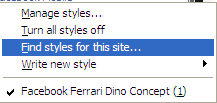
  4. Login to your Facebook Account and click on the small 'S' button in your Firefox status bar.
  5. Click on "Find Styles for this Site" to open a new tab with free themes to use for Facebook.
  6. Click on any theme and a preview will be shown.
  7. If everything is fine in the previewed theme, click on "Install with Stylish" button at the top right corner of the page.
  8. A dialog box will open.
  9. Click on Install in the dialog box.

Steps for Google Chrome
  1. Install Stylish for Chrome from the Chrome Web Store.
  2. Navigate to Facebook.com and click on the S button.
  3. Click on "Find Styles for this Site" to open a new tab with free themes to use for Facebook.
  4. Click on any theme and a preview will be shown.
  5. If everything is fine in the previewed theme, click on "Install with Stylish" button at the top right corner of the page.

Stylish Button


facebook theme change

Install with stylish

Installing Ferrari theme for Stylish Firefox

Now whenever you open Facebook, it will show the theme that you have installed with Stylish instead of the boring old blue theme.
 

How to Change Facebook Theme, Color & Appearance 

Tags: Facebook, Facebook Themes, Facebook Tricks


Microsoft Windows 8 New Features

Microsoft Windows 8 New Features
Computer Tip 
By now you probably know that the new Windows 8 operating system from Microsoft was built to compliment touch-enabled monitors. If you don’t have such a monitor, you might be wondering if the other features are enough to warrant an upgrade at any price. Let’s take a look.

Windows 8 Features

The biggest change with Microsoft 8 is the new, tile-filled interface screen (called Metro) that makes your monitor look like an over-sized smartphone loaded with apps. If you really hate the interface, or if you keep tapping the monitor with your finger despite not having a touchscreen, it’s possible to turn it off altogether. Check out this handy article from PCWorld for a walkthrough on how to turn off Metro and get back the old Windows home screen you’re used to. Once you do, you’ll be impressed by a new – yet familiar – operating system that runs faster than Windows 7 and offers several handy new features, including:

Startup Time

Unlike Windows 7, Windows 8 stores your system state and memory contents so it can load them from the disk on reboot, instead of having to reload everything from scratch, which takes a whole lot longer. While results will vary from machine to machine, reports are that starup time with Windows 8 machines is half of what it was on Windows 7.

Windows Store

You have much easier access to the Windows Store where you can buy free and paid apps. While many of these are touch-based apps, you’ll also find a nice selection of mouse-friendly ones, too.

Built-In Antivirus

After you install Windows 8, you will automatically have Windows Defender on your computer, which is a hearty little antivirus program that offers ingoing and outgoing protection against malware.

Automatic Cloud Storage

Everything from your address book to your system settings can be stored in the cloud. Then you can access it on any Windows 8 PC. You can get your personal PC experience on your home computer, work laptop, and even at a friend’s house if they have a Windows 8 machine.

System-Wide Search

It’s a lot easier to hunt down that lost MP3 with the faster, more responsive system-wide search available in Windows 8. The search also connects to the Internet, so it’s really your one-stop-spot for browsing on your computer.

Also Read :


Microsoft Windows 8 New Features
Tags: Windows 8 Feature

 
-->